AI Capabilities
LoongScales has built-in AI capabilities for image generation, background removal and image splitting. It appears at the bottom of the interface.
Open the AI panel
- There is a floating ✨ AI Generate pill button at the bottom of the interface.
- Click it, or press
Ctrl+K(⌘Kon Mac) from anywhere, and the AI panel rises from the bottom. - The button can be dragged to the left/right edge of the canvas and auto-snaps; its position is remembered.
- The button has 4 states: Idle (blue breathing glow) / Generating (progress ring) / Done (red dot badge) / Error (red border).
LoongCoins & balance
AI features consume an in-app token called LoongCoins.
- The panel title bar always shows the current balance, e.g.
💰 1,234. - The estimated cost is shown before each generation; when the balance is insufficient the button is disabled with a top-up prompt.
- The balance is deducted automatically after a successful generation.
- Click the 📜 Details button in the title bar to view LoongCoins details.
Three main tabs
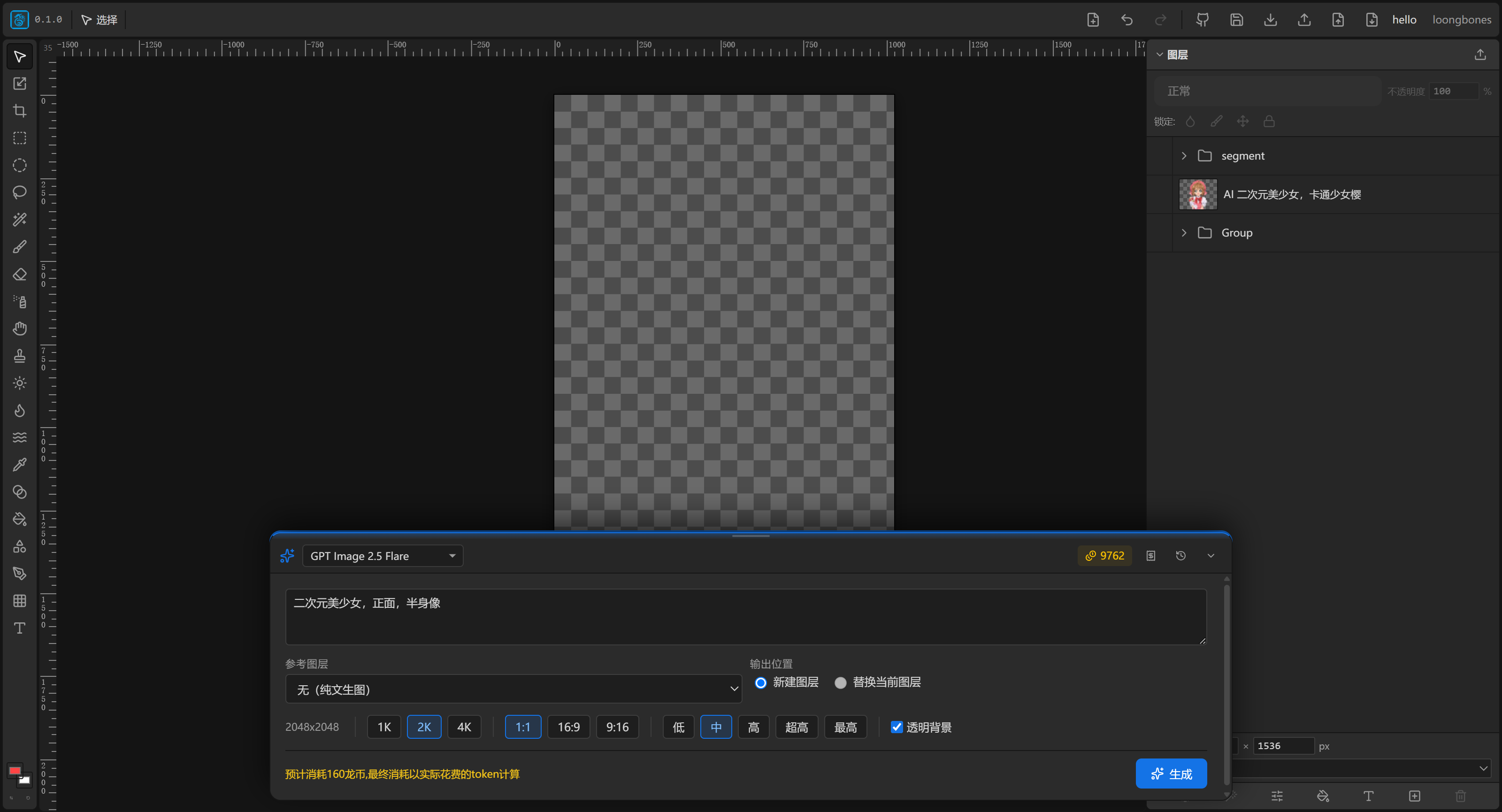
The panel has three capabilities: Generate / Remove Background / Split Image. (Under the Generate tab you can pick a specific model.)
Generate (text-to-image / image-to-image)
The generate form includes:
- Prompt: describe the image you want in natural language.
- Reference layer:
None(pure text-to-image) orCurrent selected layer(image-to-image). - Output location:
- New layer: result added as a new layer (default for text-to-image).
- Replace current layer: result replaces the selected layer (auto-disabled when "no reference" is chosen).
- Size: a resolution tier (e.g. 1K/2K) + aspect ratio (e.g. 1:1, 16:9); the real pixel size shows live below.
- Quality tier (when the model supports it) and transparent background (when supported).
- Estimate / Generate button: shows cost and triggers generation.
Typical usage:
- Text-to-image: reference=None, output=new layer, write a prompt, pick size, click generate → a new image.
- Image-to-image (new): select a layer first, reference=current, output=new → AI generates a variant based on it, as a new layer.
- Image-to-image (replace): reference=current, output=replace current → rewrites the selected layer directly (position/size preserved after transform).
Remove background
- Select a raster layer, then click the Remove Background tab in the context bar.
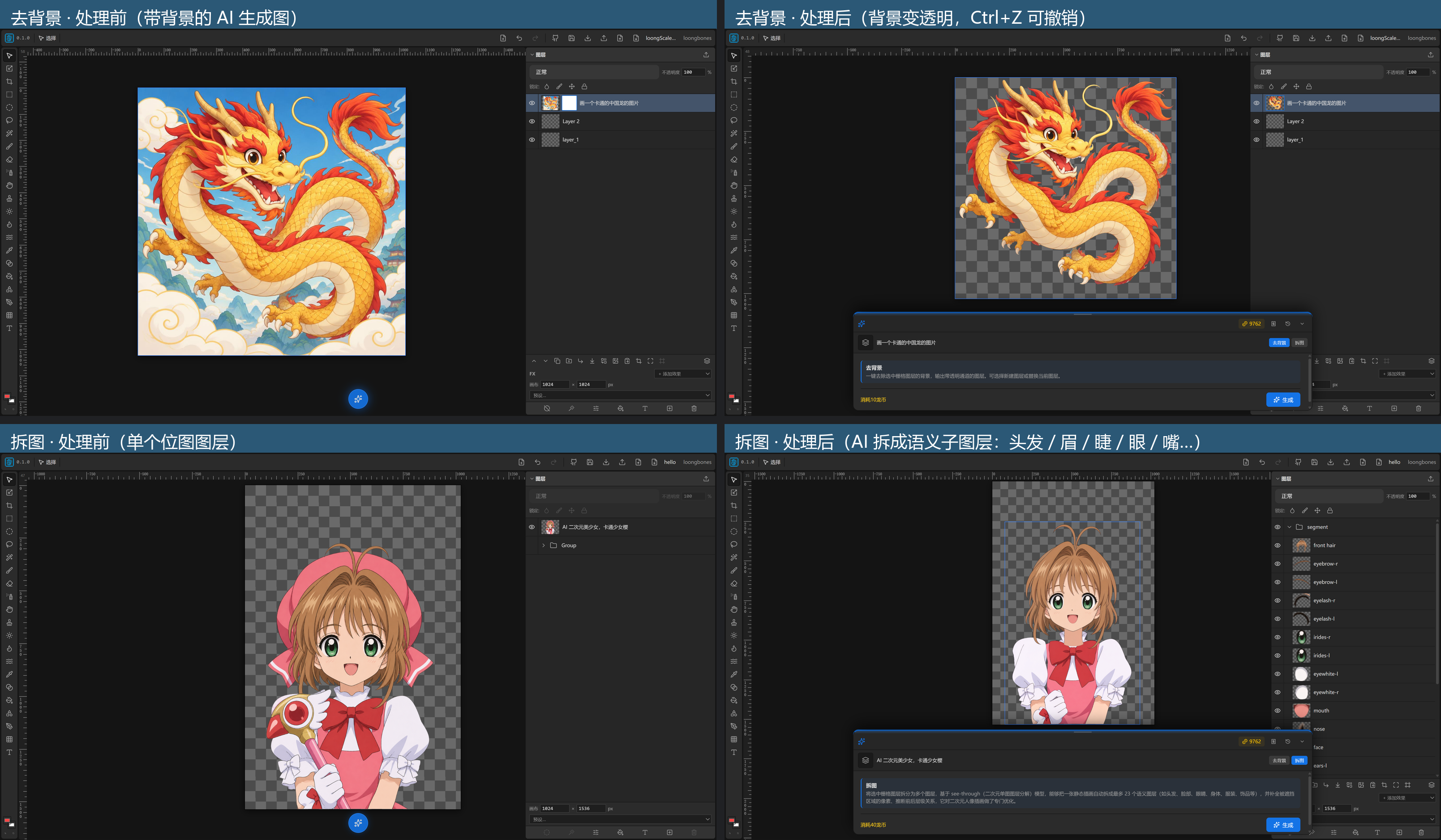
- One click cuts out the foreground and makes the background transparent; the result replaces the current layer (transform/position preserved).
- Background removal also costs LoongCoins and is recorded; it can be undone with one click (
Ctrl+Z). - If you don't want to remove the background, click the Remove Background tab again to return to the Generate screen.
Split image
- Select a raster layer, then click the Split Image tab in the context bar.
- AI splits one image into multiple independent parts and returns a layered PSD, which LoongScales imports automatically as multiple layers.
- Split Image uses the open-source framework See-Through: it decomposes a single image into fully inpainted, semantically independent layers and infers their drawing order — up to 23 layers, including hair, face, eyes, clothing, accessories, etc. It works best on cartoon portraits; other image types are not recommended.
- If you don't want to split, click the Split Image tab again to return to the Generate screen.
Generation history & "bring back what you deleted"
There is a History (🕘) button on the right of the panel title bar. Open it to see all generation history of the current work (cloud records) — every text-to-image, image-to-image, background removal and split.
Important: even if an AI-generated image is deleted from the layers, it can be brought back.
- In the history list, each record has a thumbnail and operation type;
- Click 「Add」 on that record to add that generated image back to the canvas (as a new layer);
- Split results (multiple layers) can also be added back — clicking "Add" on a split record re-imports it as multiple layers.
So you never worry about "I deleted the layer by accident after generating" — you can always pull the image / split result back from the generation history.
Not logged in / quota / errors
- If not logged in, clicking the AI button guides you to log in; the button only works after login.
- Insufficient balance: button disabled with a top-up prompt.
- Generation failed: the bottom button turns red and shows the reason (e.g. policy violation, timeout, network error); click once to return to normal.