Quick Start & Interface Layout
The four-zone layout
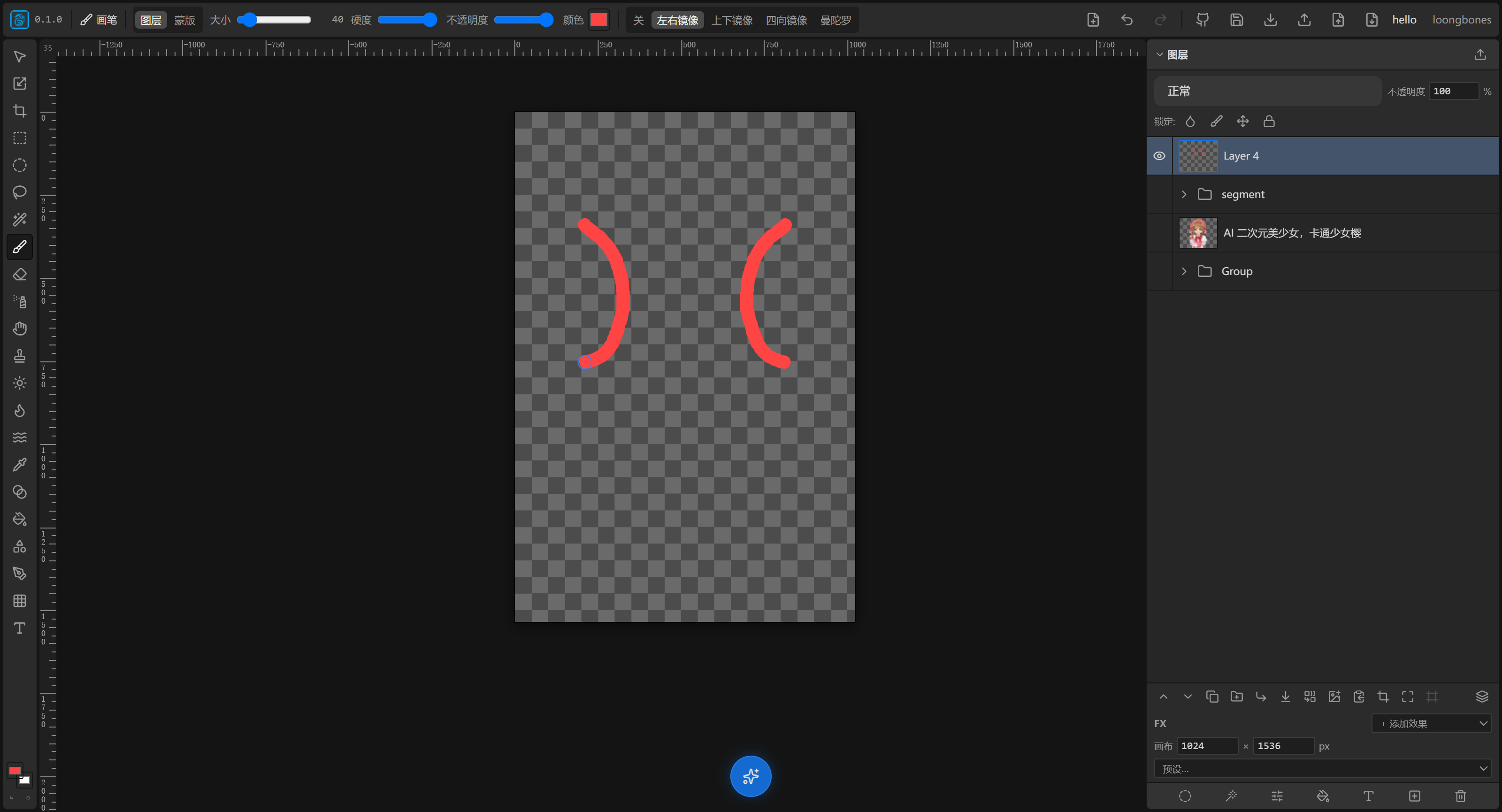
The LoongScales interface has four main zones. Once you remember their positions, every later operation has a home:
┌──────────────────────────────────────────────────────────────┐
│  Top toolbar (tool props + undo/redo + PSD + AI/sync buttons)  │
├──────┬───────────────────────────────────────────┬───────────┤
│ Left │             Center canvas (Viewport)        │  Right     │
│ tool │            your work is drawn here           │  Layers    │
│ strip │                                            │  panel      │
│+color │                                            │            │
├──────┴───────────────────────────────────────────┴───────────┤
│  Bottom: floating AI button (✨) + raised AI panel (collapsible)│
└──────────────────────────────────────────────────────────────┘- Top toolbar: shows the current tool's parameters (e.g. brush size), plus new, undo, redo, import/export PSD, AI and sync entries.
- Left tool strip: a vertical column of tool icons; click to switch tools; at the bottom are the foreground/background color swatches.
- Center canvas: where you actually draw; supports zoom and pan.
- Right Layers panel: manages all layers (create, delete, group, opacity, blend mode…).
- Bottom AI zone: a floating "✨ AI Generate" button; click to open the AI panel.
New / open a document
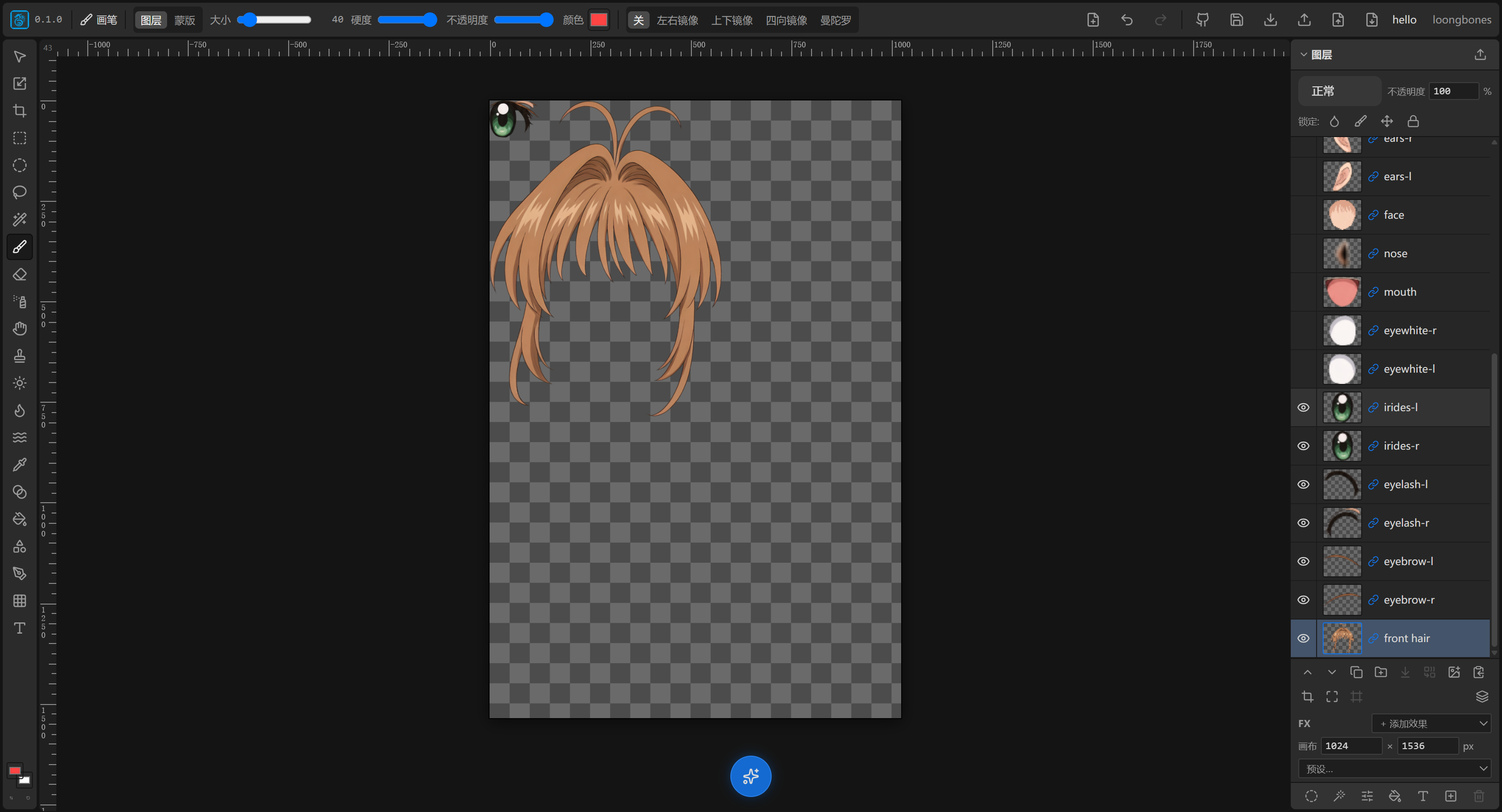
- Click New Document (📄) on the left of the top toolbar to create a blank document.
- Document size is set in the Canvas area of the right panel, and many presets are provided (paper, business card, web, display, phone, etc. — see Chapter 3).
- You can also drag an image file directly onto the canvas; it is added as a new layer.
- Import PSD is supported (top toolbar import button, only accepts
.psd).
Auto-save, nothing lost on close
LoongScales saves the whole document (including every image in it) automatically in the browser's local database (IndexedDB).
- You don't save manually; after refreshing or reopening, the work is still there, but data will be lost if you clear the browser cache.
- Click the save button to store the data in the cloud; it is pulled automatically the next time you open it, so the data won't be lost.
First operation: draw a stroke / drop an image
- Select a layer.
- Pick the Brush tool in the left tool strip.
- Adjust size, hardness, opacity in the top properties bar, and pick a color in the color swatch.
- Drag on the canvas to draw a line.
- Want to undo? Press
Ctrl+Z(⌘Zon Mac).