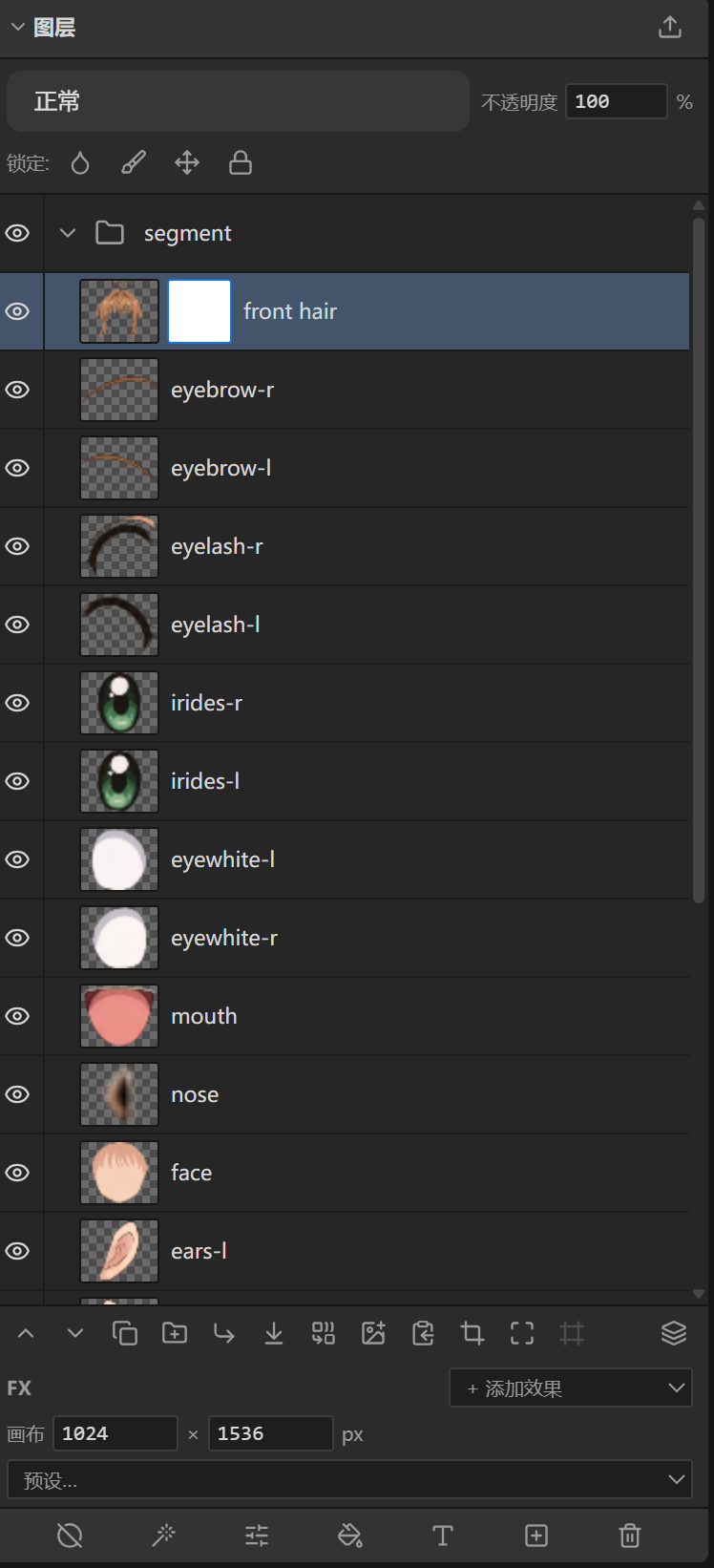
Layer System
Layers are the core concept of LoongScales. Think of them as "sheets of transparent glass stacked up" — what's on top covers what's below.
Six layer types (nodes)
| Type | Description | Synced to LoongBones? |
|---|---|---|
| Raster | Pixel layer; hand-drawn / imported / AI-generated all land here | ✅ Yes (only synced type) |
| Text | Editable text | ❌ |
| Vector | Shape / path, stays sharp when scaled | ❌ |
| Adjustment | Non-destructive color grading (see Ch. 6) | ❌ |
| Fill | Solid color / gradient fill layer | ❌ |
| Group | Pack multiple layers for management, with pass-through blending | ❌ |
Only raster layers sync to the LoongBones material library; text/vector/adjustment/fill/group do not (see Chapter 10).
Layers panel operations
The right Layers panel can:
- New: add from library, add from file, new text layer, new blank layer, new adjustment layer, new fill layer.
- Basic: show/hide, lock (transparent / pixels / position / all), rename (double-click), drag to reorder, multi-select (Shift range, Ctrl add/remove).
- Organize: copy, group/ungroup, merge down, merge visible, new layer from visible, flatten image.
- Raster-only: crop to content, one-click split texture atlas, align to canvas, rasterize, delete.
- Vector-only: path to selection, stroke path.
- Text-only: text to path, text to raster (rasterize).
Layer properties
- Opacity: 0–100, controls layer transparency.
- Blend Mode: how this layer "mixes" with the one below, 27 modes in total: Normal, Multiply, Screen, Overlay, Darken, Lighten, Color Dodge, Color Burn, Hard Light, Soft Light, Difference, Exclusion, Linear Dodge, Linear Burn, Vivid Light, Pin Light, Linear Light, Hard Mix, Subtract, Divide, Grain Extract, Grain Merge, Hue, Saturation, Color, Luminosity.
- Lock: prevent accidental edits (lock transparent area / lock pixels / lock position / lock all).
Layer mask
A mask uses "black/white/gray" to control where a layer shows or hides (white = show, black = hide, gray = semi-transparent):
- When creating a mask you can choose init: All White (fully shown), All Black (fully transparent), Current selection, Layer's own alpha, Layer grayscale copy.
- Right-click the mask thumbnail to: Show mask, Enable/Disable, Invert, Apply (bake into pixels), Mask to selection, Delete mask.
- Brush/eraser can switch to the "mask" target and paint on the mask directly.
Clipping mask
Shortcut Ctrl+Alt+G turns the current layer into a clipping mask: it only shows within the shape (alpha) of the layer below it. Exported to PSD it is kept as clipping.
LoongBones-protected layer
When a raster layer is bound to a LoongBones material, the Layers panel shows a blue link icon 🔗, meaning it is "still referenced by LoongBones". Such layers:
- Cannot be deleted or merged down (protects the LoongBones reference).
- The delete/merge buttons on the panel are greyed out automatically.