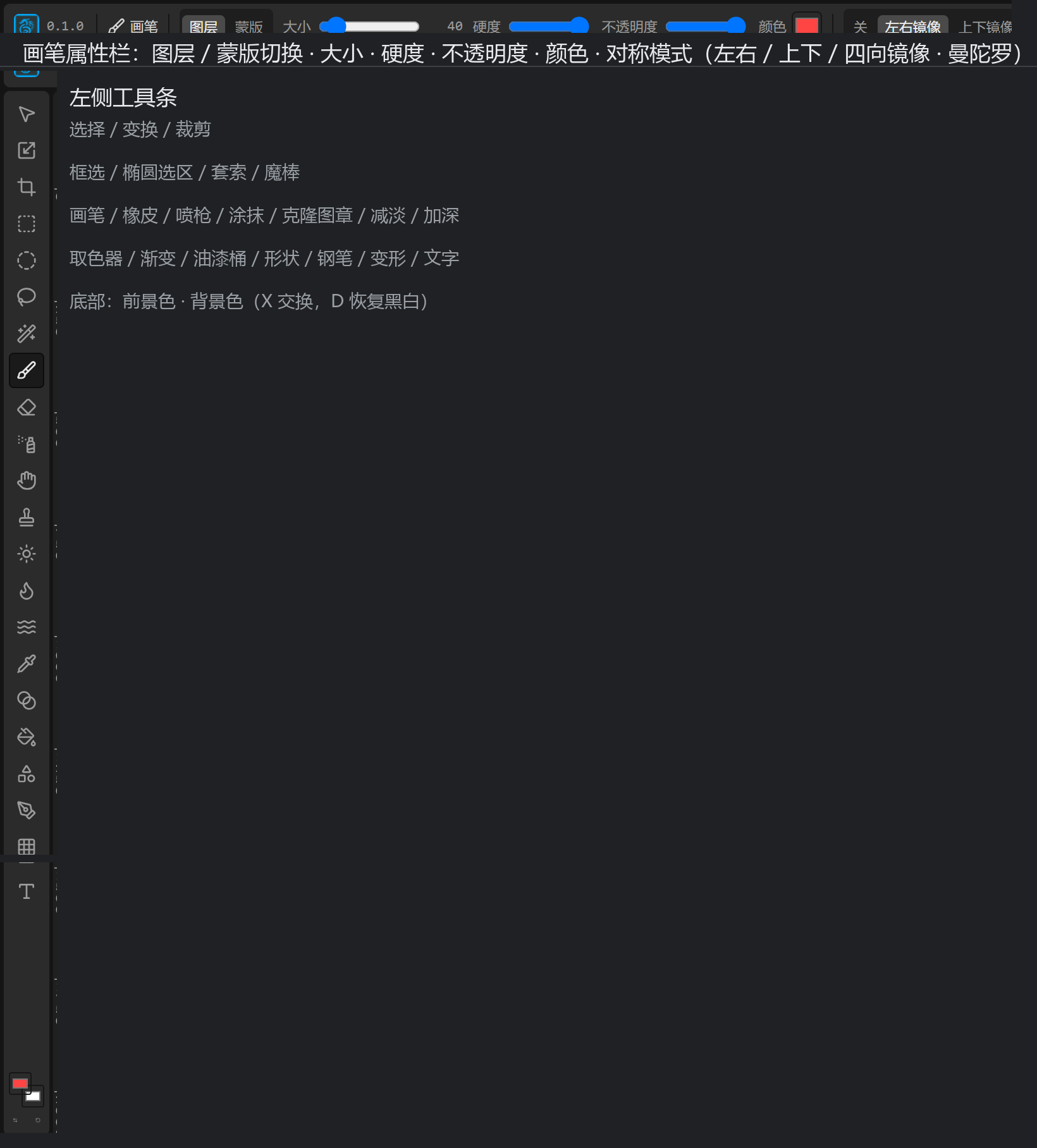
Toolbox
The left tool strip lists all tools. They are grouped below by purpose (the English name in parentheses helps you match the icon).
Select & transform
| Tool | Purpose |
|---|---|
| Select / Move | Select a layer and drag it |
| Transform (Ctrl+T) | Scale, rotate, skew a layer, with snap grid |
| Crop | Frame the area to keep; extra canvas is cropped after applying |
Selection tools
| Tool | Purpose |
|---|---|
| Marquee | Drag a rectangular selection |
| Ellipse select | Drag an elliptical selection |
| Lasso | Free-hand shape selection |
| Fuzzy select | Select by color similarity; adjustable threshold, contiguous, anti-alias, white-edge removal |
The selection tool properties bar offers: Feather, Grow, Shrink, Border, plus Fill selection and Stroke selection. Between selections use
Shiftto add,Ctrlto subtract,Ctrl+Shiftto intersect (see Chapter 7).
Painting tools
| Tool | Purpose |
|---|---|
| Brush | Basic painting; adjustable size (2–400), hardness, opacity, color |
| Eraser | Erase pixels (on a mask it erases the mask) |
| Airbrush | Spray with accumulating density |
| Smudge | Push pixels around like a finger |
| Clone | Alt+click to set the sample source, then paint to copy from it |
| Dodge | Lighten |
| Burn | Darken |
Painting target switch: the brush/eraser properties bar lets you switch between painting on the Layer or the Mask.
Symmetrical drawing: brush/eraser/airbrush support symmetry modes — off / horizontal mirror / vertical mirror / quad mirror / mandala (2–16 sectors). Great for symmetric patterns and totems.
Gradient & fill
| Tool | Purpose |
|---|---|
| Gradient | Linear/radial gradient; "gradient to transparent", reverse, background color |
| Bucket fill | Fill a contiguous area with the foreground color |
Shape & vector
| Tool | Purpose |
|---|---|
| Shape | Rectangle, ellipse, line, polygon, star, arc, spiral |
| Pen | Precise path with Bézier anchors |
Shape properties: sides (3–24), star inner ratio (0.1–0.9), spiral turns (1–8), fill/stroke on/off, line width (1–100), and choose "new layer" or "merge to current layer".
Text, eyedropper & warp
| Tool | Purpose |
|---|---|
| Text | Place a text layer on the canvas; double-click or use the dialog to edit |
| Color picker | Pick any color on the canvas as the foreground color |
| Warp | Pull the layer into a deformation with a grid (3×3 / 4×4 / 5×5) |
| Edge anti-alias | Anti-alias or blur the current layer's edges |
Foreground & background color
Two overlapping swatches sit at the bottom of the tool strip:
- Top is the foreground color (used by brush, fill); bottom is the background color.
- Press
Xto swap foreground/background; pressDto restore default (black foreground, white background).